Audit Computers From Different Locations
There are various scenarios to perfom network inventory audit of remote computers from different locations. One of them is to use Microsoft Azure SQL as a backend database.
Create Databases.
First of all, you should create databases for the network inventory data. You can use these DB engines: Firebird, Microsoft SQL Server or Oracle. Please note, for the current scenario your DB should be accessible from your remote sites.
For example, we created a new DB in Microsoft Azure (https://azure.microsoft.com/). You can purchase a subscription from Microsoft or use a free trial. Also, please check all of your firewall settings to grant the access from all of your sites.
Install Network Asset Tracker Pro.
All sites you need to audit can be scanned locally or through a VPN. In this tutorial, we are going to install Network Asset Tracker Pro on one computer per remote site to scan the computers locally and from any location.
We recommend using different databases for every location just to prevent network errors when NATPro tries to scan computers from another location as a local.
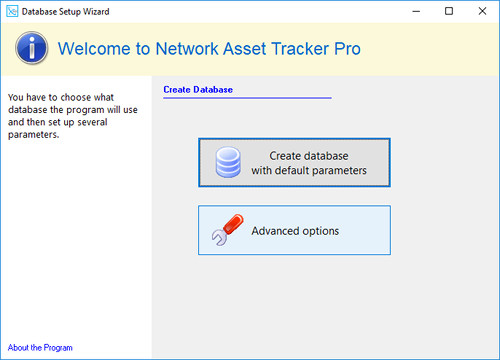
During the installation of Network Asset Tracker Pro, you will be asked to create a new DB. Please press the "Advanced" button.
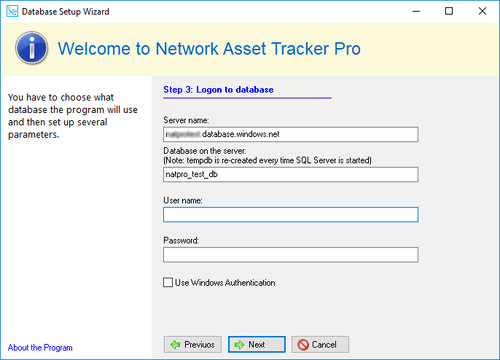
Then choose DB type (MS SQL for this scenario) and enter the parameters.
Inventory Remote Sites
After you install Network Asset Tracker Pro on every remote site, you can scan computers at localtions. There are a few methods are available: manually by using the NATPro GUI; with Logon Script; with build in Scheduler.
When all instances of Network Asset Tracker Pro gets the information about theur local computers, you can use any of these instances to view all databases. But we recommend to install additional instance only for global monitoring.
Switch Between Databases
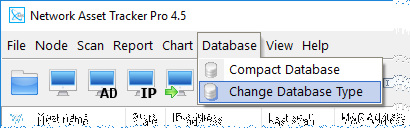
With Network Asset Tracker Pro you can easy view the inventory data from others locations by switching between the databases. Just choose menu "Database" - "Change Database Type".
After you install Network Asset Tracker Pro on every remote site, you can scan computers at these locations. There are a few methods available: manually by using the NATPro GUI; with Logon Script; with build in Scheduler.