|
Network inventory software
Hardware and software inventory
|
Support
E-mail support
You can send all your questions to our support or sales team. We can guarantee a 12 hours response time for e-mail support.
Average response time is near 2-4 hours. If you have any questions please feel free to contact:
On-line support
You can ask a question via instant messenger. We will be happy to help you and
answer your question. We have user names for AIM, ICQ, Yahoo! and Windows Live Messenger:
Address and phone number
Pacific Business Centre, MIS Utilities
P.O. Box 34069 #381
Seattle, WA 98124-1069
USA
(please do not send checks here)
|
Phone number: +1 (877) MIS-UTIL
|
User Manual
Network Asset Tracker (Pro) - Frequently Asked Questions
Q: Why the software doesn't run and returns an error message?
A: Network Asset Tracker (Pro) might not run correctly with DEP (Data Execution Prevention).
You can add Network Asset Tracker (Pro) to a DEP exeption list or enable DEP protection only for
Windows system components and services.
To add Network Asset Tracker (Pro) to the DEP exception list:
- Click "Start", and then click "Control Panel".
- Under "Pick a category", click "Performance and Maintenance".
- Click on "System".
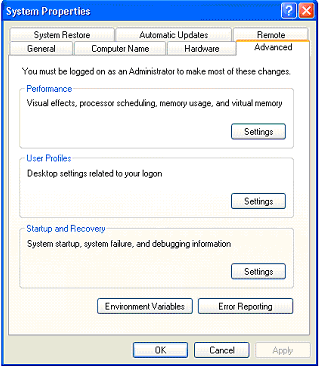
- Click the "Advanced" tab.
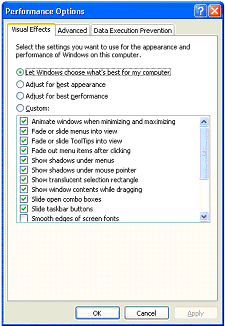
- In the "Performance" area, click "Settings".
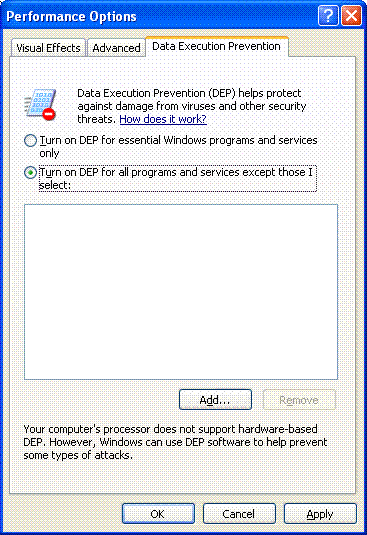
- Click the "Data Execution Prevention" tab.
- Click "Add".
- Locate and select NATracker.exe or NATrackerPro.exe (By default "C:\Program Files\Network Asset Tracker\NATracker.exe" or "C:\Program Files\Network Asset Tracker Pro\NATrackerPro.exe"), and then click "Open".
- In the warning box, click "OK". The Network Asset Tracker (Pro) now appears in the DEP program area.
- Click "Apply", and then click "OK". A dialog box appears and informs you that you must restart your computer for the setting to take effect. Click "OK".
To enable DEP protection only for Windows system components and services:
- Click "Start", and then click "Control Panel".
- Under "Pick a category", click "Performance and Maintenance".
- Click on "System".
- Click the "Advanced" tab.
- In the "Performance" area, click "Settings".
- Click the "Data Execution Prevention" tab.
- Select the option "Turn on DEP for essential Windows programs and services only".
- Click "Apply", and then click "OK". A dialog box appears and informs you that you must restart your computer for the setting to take effect. Click "OK".
Q: Why I can't get information from remote computers?
A: Network Asset Tracker (Pro) uses WMI (Windows Management Instrumentation)
through DCOM RPC. Please, check services: "COM+ Event system", "Remote Procedure Call
(RPC)" and "Remote Procedure Call (RPC) Locator" on the problem PC. Also, the account
attempting remote access should be an administrator on the target computer.
Q: I have an error message [80041003]: The current user does not have permission to perform the action.
A: This typically results when the process trying to access the namespace does not have the required
WMI privileges. The account attempting remote access should be an administrator on the target
computer. In addition, the account might need to have a specific privilege enabled.
To troubleshoot this error check the namespace security on the remote namespace to see the
privileges enabled for the account.
You can access the WMI Control and the Security tab in the Computer Management Console:
- Right-click on My Computer and click Manage.
- Double-click Services and Applications and then double-click WMI Control.
- Right-click WMI Control and then click Properties.
- In the WMI Control Properties dialog box click the Security tab.
- A folder named Root with a plus sign (+) next to it should now be visible. Expand this tree as necessary to locate the namespace CIMV2.
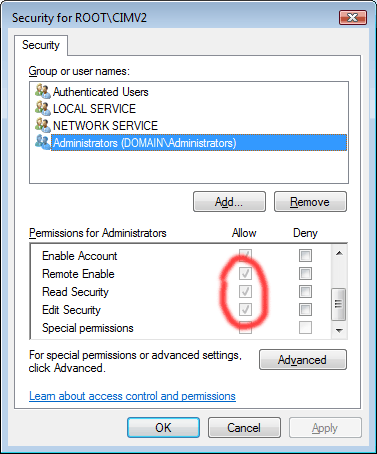
- Click the Security button. A list of users and their permissions appears. If the user is on that list modify the permissions as appropriate. Add "network service" account (from local computer accounts) and administrator account. If the user is not on the list, click the Add button, and add the user from the location (local machine, domain, etc.) where the account resides.
- In order to view and set namespace security, the user must have Read Security and Edit Security permissions. Administrators have these permissions by default, and can assign the permissions to other user accounts as required.
- If this user needs to access the namespace remotely, you must select the Remote Enable permission.
- By default, user permissions set on a namespace apply only to that namespace. If you want the user to have access to that namespace and all subnamespaces in the tree below it, or in subnamespaces only, click the Advanced button. Click Edit and specify the scope of access in the resulting dialog box.
Q: I have an error message [80070005]: Access is denied.
A: The user does not have remote access to the computer through DCOM.
Please, try the next on the problem PC:
- Click Start, click Run, type DCOMCNFG, and then click OK.
- In the Component Services dialog box, expand Component Services, expand Computers, and then expand My Computer.
- On the toolbar, click the Configure My Computer button. The My Computer dialog box appears.
- In the My Computer dialog box, click the COM Security tab.
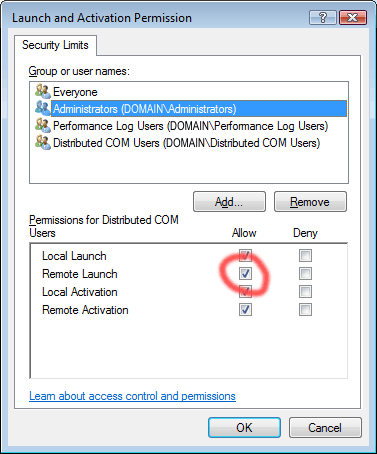
- Under Launch and Activate Permissions, click Edit Limits.
- In the Launch Permission dialog box, follow these steps if your name or your group does not appear in the Groups or user names list: In the Launch Permission dialog box, click Add. In the Select Users, Computers, or Groups dialog box, add your name and the group in the Enter the object names to select box and then click OK.
- In the Launch Permission dialog box, select your user and group in the Group or user names box. In the Allow column under Permissions for User, select Remote Launch, and then click OK.
Q: I have an error message [800706BA]: The RPC server is unavailable.
A: Network Asset Tracker (Pro) uses WMI (Windows Management Instrumentation) through DCOM RPC.
Please, check services: "COM+ Event system", "Remote Procedure Call (RPC)" and "Remote Procedure
Call (RPC) Locator" on the problem PC.
In Windows 2003 the WMI Windows Installer Provider is an optional component. To install this
provider, open the Control Panel Add/Remove Programs applet and click Add/Remove Windows Components.
Select the Management and Monitoring Tools check box, then click Details. Select the WMI Windows
Installer Provider check box and click OK.
Network Asset Tracker (Pro) uses WMI (Windows Management Instrumentation) through DCOM RPC.
It requires special configuration of Windows Firewall in Windows XP SP2 and Windows Vista to allow
remote connections. WMI needs to support connection with RPC and DCOM (TCP ports 135 and 445).
You need to apply a special Windows Firewall policy which allows remote administration.
You can use the Group Policy editor (Gpedit.msc) to allow remote administration:
- Under the Local Computer Policy heading, open the Computer Configuration folder.
- Open the Administrative Templates folder.
- Open the Network folder.
- Open the Network Connections folder.
- Open the Windows Firewall folder.
- If the computer is in the domain then open the Domain Profile folder, otherwise open the Standard Profile folder.
- Click Windows Firewall: Allow remote administration exception.
- On the Action menu, select Properties.
- Click Enable, and then click OK.
The step-by-step guide is provided here: "Connecting Through Windows Firewall"
Q: I have an error message [80070776]: The object exporter specified was not found.
A: Please, try the next on the problem PC:
- Click Start, click Run, type DCOMCNFG, and then click OK.
- In the Component Services dialog box, expand Component Services, expand Computers, and then expand My Computer.
- On the toolbar, click the Configure My Computer button. The My Computer dialog box appears.
- In the My Computer dialog box, click the COM Security tab.
- Under Launch and Activate Permissions, click Edit Limits.
- In the Launch Permission dialog box, follow these steps if your name or your group does not appear in the Groups or user names list: In the Launch Permission dialog box, click Add. In the Select Users, Computers, or Groups dialog box, add your name and the group in the Enter the object names to select box and then click OK.
- In the Launch Permission dialog box, select your user and group in the Group or user names box. In the Allow column under Permissions for User, select Remote Launch, and then click OK.
Q: I have an error message [90110001]: Terminated due to timeout.
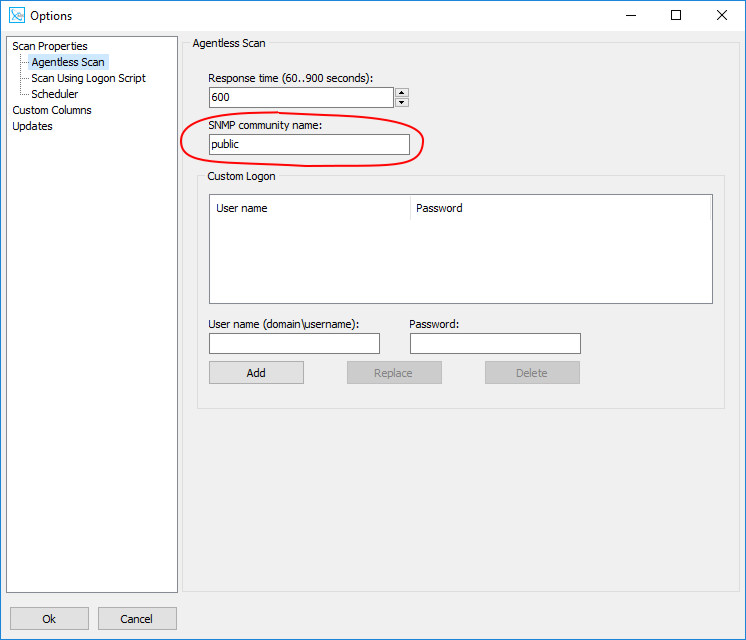
A: Try to increase option "Response time". To do this, select menu "File" -> "Options", select "Agentless Scan". Set the value to 900 seconds.
Q: Why I can't get information from remote computer with Windows XP SP2 / Vista / 7?
A: Network Asset Tracker (Pro) uses WMI (Windows Management Instrumentation) through DCOM RPC.
It requires special configuration of Windows Firewall in Windows XP SP2 and Windows Vista to allow remote
connections. WMI needs to support connection with RPC and DCOM (TCP ports 135 and 445).
You need to apply a special Windows Firewall policy which allows remote administration.
You can use the Group Policy editor (Gpedit.msc) to allow remote administration:
- Under the Local Computer Policy heading, open the Computer Configuration folder.
- Open the Administrative Templates folder.
- Open the Network folder.
- Open the Network Connections folder.
- Open the Windows Firewall folder.
- If the computer is in the domain then open the Domain Profile folder, otherwise open the Standard Profile folder.
- Click Windows Firewall: Allow remote administration exception.
- On the Action menu, select Properties.
- Click Enable, and then click OK.
The step-by-step guide is provided here: "Connecting Through Windows Firewall"
Q: Why I can't get information from remote computer with Windows 2003?
A: In Windows XP and earlier, the WMI Windows Installer Provider is installed by default.
In Windows 2003 the WMI Windows Installer Provider is an optional component. To install
this provider, open the Control Panel Add/Remove Programs applet and click Add/Remove
Windows Components. Select the Management and Monitoring Tools check box, then click
Details. Select the WMI Windows Installer Provider check box, and click OK.
Q: Why I can't get information from remote computer with Windows 95/98?
A: You should install the WMI CORE. You can download it from
microsoft.com
Q: I have installed WMI CORE on PC with Windows 95/98, but can't view information from it.
A: The Windows Management service starts automatically on computers running Windows NT, but not on computers running Windows 95/98.
To set up the Windows Management service to start automatically on a Windows 95/98 system, please, run regedit.exe and change
the following values:
[HKEY_LOCAL_MACHINE\Software\Microsoft\OLE]
"EnableDCOM"="Y"
"EnableRemoteConnect"="Y"
[HKEY_LOCAL_MACHINE\Software\Microsoft\WBEM\CIMOM]
"SetupForDCOM"="1"
"AutostartWin9X"="2"
"EnableAnonConnections"="1"
Q: I can't configure WMI for remote access.
A: Network Asset Tracker Pro can get information from remote PC through WMI (agentless method) or, if you have any problems with WMI, you can use
"NAT Pro - Agent" installed on remote PC.
Network Asset Tracker Pro automatically detects if "NAT Pro - Agent" is installed on remote computer. All you need is to open port TCP 25001.
Q: What port number does "NAT Pro - Agent" use?
A: You need to open port TCP 25001.
Q: How to do a silent upgrade of "NAT Pro - Agent"?
A: You should use the following command line arguments:
natrackerproagent.msi REINSTALLMODE=voums REINSTALL=all REBOOT=reallysuppress
Q: When scanning remote computers on some PC's the process WmiPrvse.exe consumes 100% of CPU.
A: This problem can be solved with the installation of the Microsoft hotfix KB956523.
Q: Network Asset Tracker (Pro) detects Pentium III Xeon processor instead of Intel Core 2 Duo.
A: You need to install a hotfix KB953955.
Q: Is Network Asset Tracker (Pro) a spyware?
A: Network Asset Tracker (Pro) is shareware, not adware or spyware!
Network Asset Tracker (Pro) will never send any data to us!
|
|
|
|
JUN 06, 2012 A new version of program for network inventory Network Asset Tracker Pro 4.0 has been released to extend the functionality even further. more »
|
|
NOV 15, 2011 MIS Utilities today announced the release of program for network inventory Network Asset Tracker Pro 3.10. more »
|
|
|
|
|
|
|
|
|
|
|
| Did you know that Network Asset Tracker is an agent-free utility, which means there are no
network deployment issues - the program is based on WMI technology. |
|
|
|
|
|
|
|
 |
|
| Member of the Intel® Software Partner Program |
|
|
|